

If you sell art prints on Etsy, Shopify, or Instagram, you've likely used Canva at some point. It's fast, free (for the basic version), and incredibly intuitive. It also offers a growing library of mockup templates so that you can easily showcase your art in digital environments without needing to touch complex software like Photoshop.
In this guide, we'll look at the two main ways to create mockups in Canva—from utilizing their latest built-in integrations to the classic manual "drag-and-drop" method.
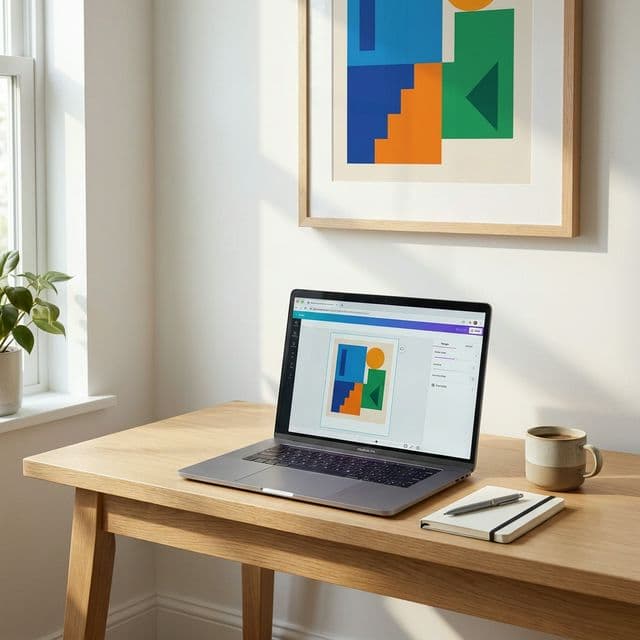
Method 1: The "Smartmockups" Integration
Canva recently acquired Smartmockups, which means you can now access a library of basic mockups directly inside the Canva interface.
- Upload your artwork to Canva.
- Select your image and click 'Edit Image'.
- Search for 'Smartmockups' in the sidebar.
- Choose a frame or room scene. Canva will automatically "place" your art into the scene.
Method 2: Manual Drag-and-Drop
The more traditional way is to find a "stock photo" of a room on a site like Etsy or Freepik, upload it to Canva, and then manually place your art over it.
The struggle: To make it look realistic, you have to manually adjust the transparency, add a "drop shadow" effect in Canva, and try to match the lighting of the original photo. This often takes 10–15 minutes per image and rarely looks truly professional because the shadows aren't physically accurate to the room's lighting.
Pro Tip: Making Manual Mockups Look More Realistic
When placing art manually, pay attention to the light source in the room photo. If light is coming from the left, your shadow should fall to the right. Use Canva's "Glow" effect set to black at 20-30% transparency for the most natural-looking shadows.
Common Mistakes to Avoid
Whether you're using the Smartmockups integration or the manual method, here are the most common pitfalls that make Canva mockups look amateurish:
Incorrect Scaling
Making your art too large or too small for the wall space. A good rule of thumb: your art should take up about 2/3 to 3/4 of the wall width above a sofa or bed.
Ignoring Perspective
If the room photo is taken at an angle, your art needs to match that perspective. Canva's "Perspective" tool under Effects can help, but it requires manual adjustment for each image.
Using Low-Resolution Room Photos
Your art might be high-res, but if the background room is pixelated, the entire mockup looks unprofessional. Always use the highest quality room photos you can find.
When Canva Works Best
Despite its limitations, Canva is excellent for certain use cases:
- ✓Social Media Posts: Quick Instagram stories or Facebook posts where speed matters more than perfection.
- ✓Testing New Designs: Creating rough previews to gauge customer interest before investing in professional mockups.
- ✓Budget-Conscious Beginners: Artists just starting out who need free tools to get their first listings live.
Why Artists "Graduate" from Canva
Artists who sell 50+ prints a month usually find that Canva "hits a wall." When your brand grows, you need consistency and premium quality that flat design tools can't provide.
The Canva Limit
- ✕Manual shadows that often look "flat"
- ✕Static templates shared by thousands of shops
- ✕Limited resolution and file size for print-ready previews
- ✕No option for cinematic motion or video content
The Bello Advantage
- ✓Curated Interiors: Magazine-worthy rooms that elevate your art.
- ✓Smart Shadows: Lighting is rendered automatically to match the room.
- ✓True-to-Scale: Enter your artwork dimensions for physically accurate sizing in the scene.
- ✓Video Mockups: Export high-end room pans that stop the scroll.
- ✓Full Customization: Adjust frame styles, matboards, positioning, and sizing in real-time.