

Floating frames (also called float frames or shadow box frames) are a popular way to display canvas prints. They create a gap between the canvas edge and the frame, giving your artwork a gallery-quality, three-dimensional appearance.
In this tutorial, you'll learn how to create this effect in Bello Studio using the inner shadow feature. The entire process takes less than 2 minutes once you know the settings.
What You'll Learn
- ✓How to access frame customization in Bello Studio
- ✓The exact inner shadow settings for a realistic floating frame
- ✓How to adjust the gap width and shadow depth
Step-by-Step Tutorial
Open Your Mockup in Bello Studio
Start by opening any Bello mockup in Studio. If you haven't created a mockup yet, browse the mockup library, upload your artwork, and click "Open in Studio" to customize it.
Select Your Artwork
In Studio, click the artwork selector to choose an image file from your computer. Since Bello is browser-based, your artwork stays local—nothing is uploaded to a server.
Open Frame Settings
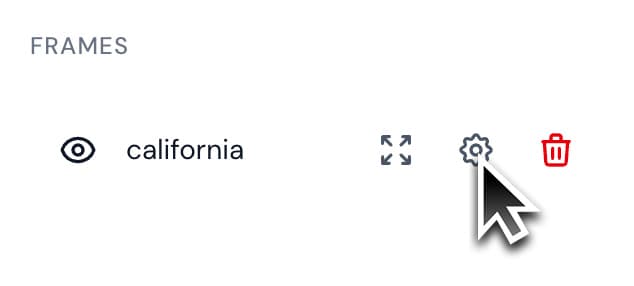
Once your artwork is selected, you'll see a "Frames" section appear in the left panel. Click on the frame thumbnail or the settings cog icon to open the frame customization panel.
Enable Inner Shadow
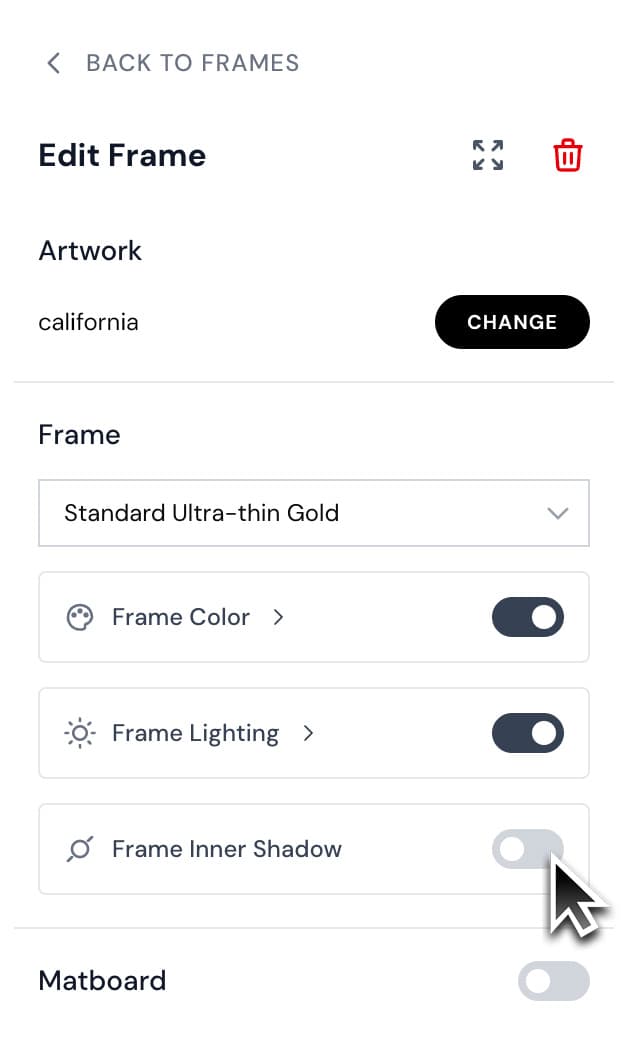
In the frame settings panel, scroll down to find the "Inner Shadow" option and toggle it on. We'll use this feature to create the floating frame gap.
Configure Shadow Settings
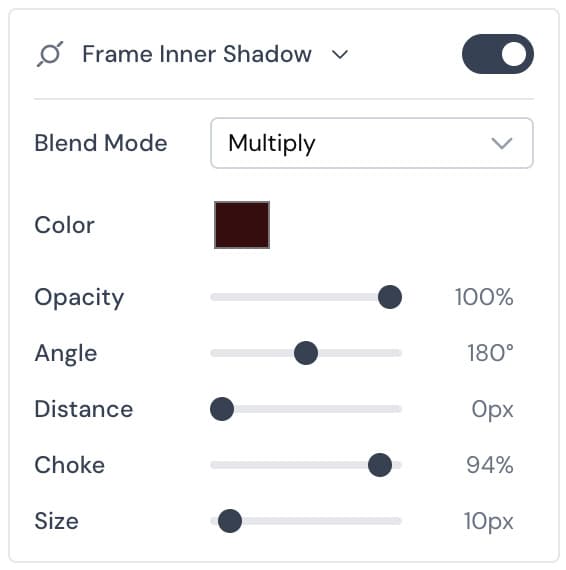
Now comes the magic. Set the following values to create a realistic floating frame gap:
Pro Tip: The Choke setting (94-97%) is critical—it controls how sharp the edge of the canvas appears. Higher values create a crisper edge, while lower values add more blur. The Size setting controls the width of the gap between the canvas and frame.
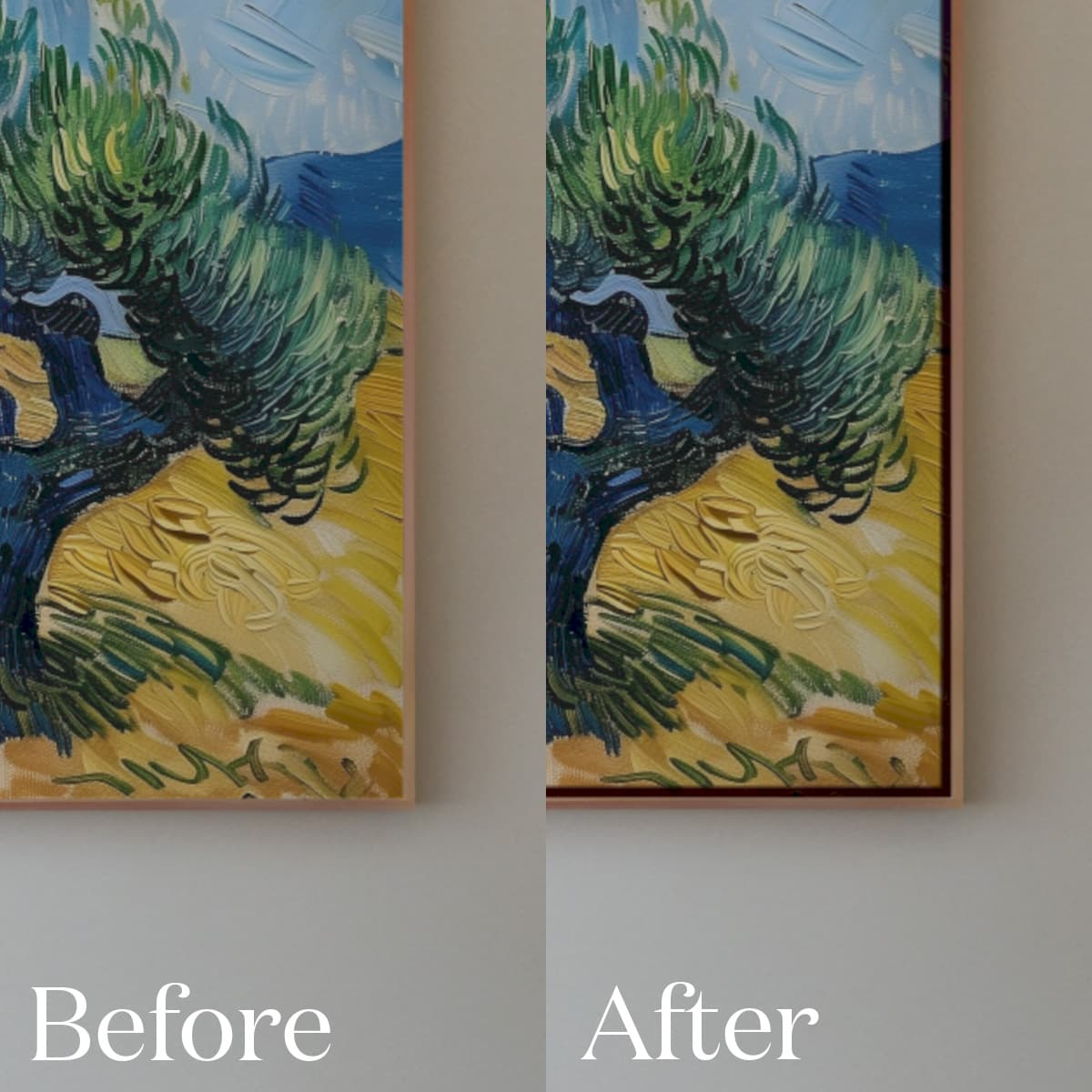
Before & After
Here's the dramatic difference the floating frame effect makes. Notice how the gap creates depth and makes the artwork feel more premium and gallery-worthy.
Customization Tips
Adjust the Gap Width
Want a wider or narrower gap? Increase or decrease the Size value. Try 5px for a subtle gap or 15px for a more dramatic float effect.
Change the Gap Color
The Color setting controls the color of the gap. Dark colors (black, charcoal) work best for most artwork, but you can experiment with lighter tones for a different aesthetic.
Fine-Tune the Edge Sharpness
The Choke value determines how crisp the canvas edge appears. 94% gives a slight blur (more realistic), while 97% creates an ultra-sharp edge. Experiment to find what looks best for your artwork.
Why Use Floating Frames?
Floating frames are popular among artists and galleries because they:
- ✓Add Depth: The gap creates a three-dimensional effect that makes artwork pop off the wall
- ✓Look Premium: Floating frames are associated with high-end galleries and professional presentations
- ✓Showcase Canvas Edges: Perfect for gallery-wrapped canvases where the artwork extends around the sides
- ✓Increase Perceived Value: Listings with floating frame mockups often command higher prices on Etsy and Shopify
Conclusion
Creating a floating frame effect in Bello Studio is simple once you know the right settings. The key is using the inner shadow feature with a high choke value (94-97%) and adjusting the size to control the gap width.
This technique works for any mockup in Bello Studio and can dramatically elevate the perceived quality of your artwork. Whether you're creating Etsy listings, portfolio pieces, or client presentations, the floating frame effect adds a professional, gallery-quality touch.
Now that you've mastered this technique, experiment with different gap widths, colors, and choke values to find the perfect look for your art style.