

A great wall art mockup makes your work look like it's already hanging in a real home. In this tutorial you'll build one from scratch: start with an original room image, clean the wall, drop in your artwork with the FRAMES plugin, and blend it so the whole scene feels real.
Unlike a drag-and-drop PSD template, you control the room, the framing, and the mood, so every mockup looks like your brand instead of a stock scene everyone else is using.
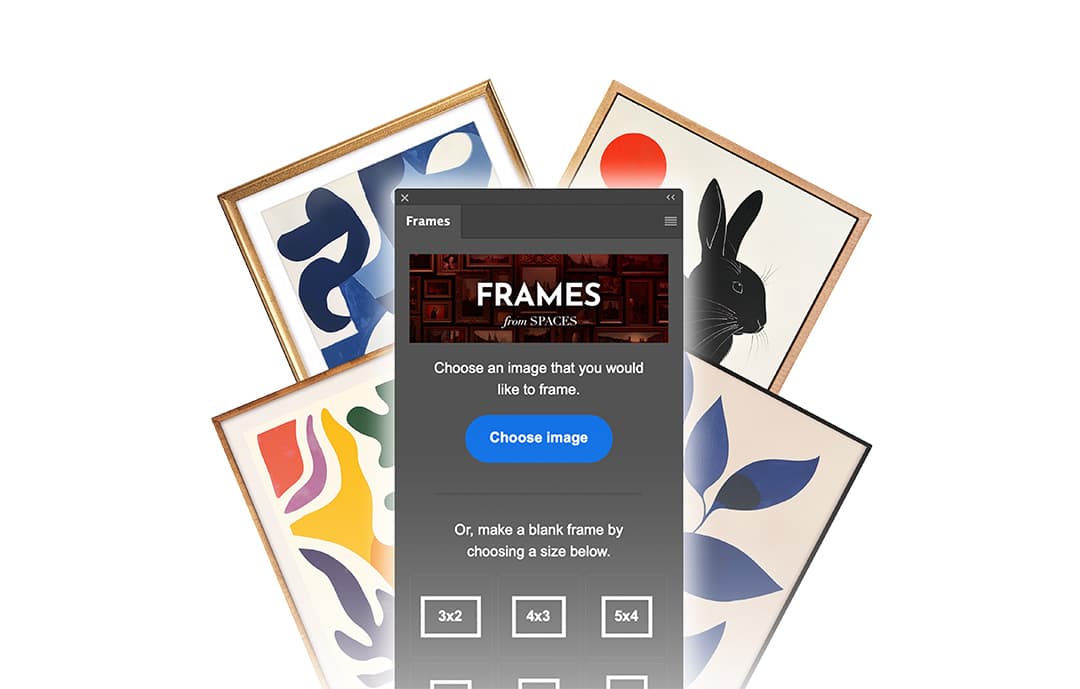
What You Need
- Adobe Photoshop
- An artwork file at decent resolution
- A room image, either photographed or AI-generated
- The FRAMES Photoshop plugin for placing and styling the artwork
Step-by-Step Workflow
Generate or Choose a Room Image
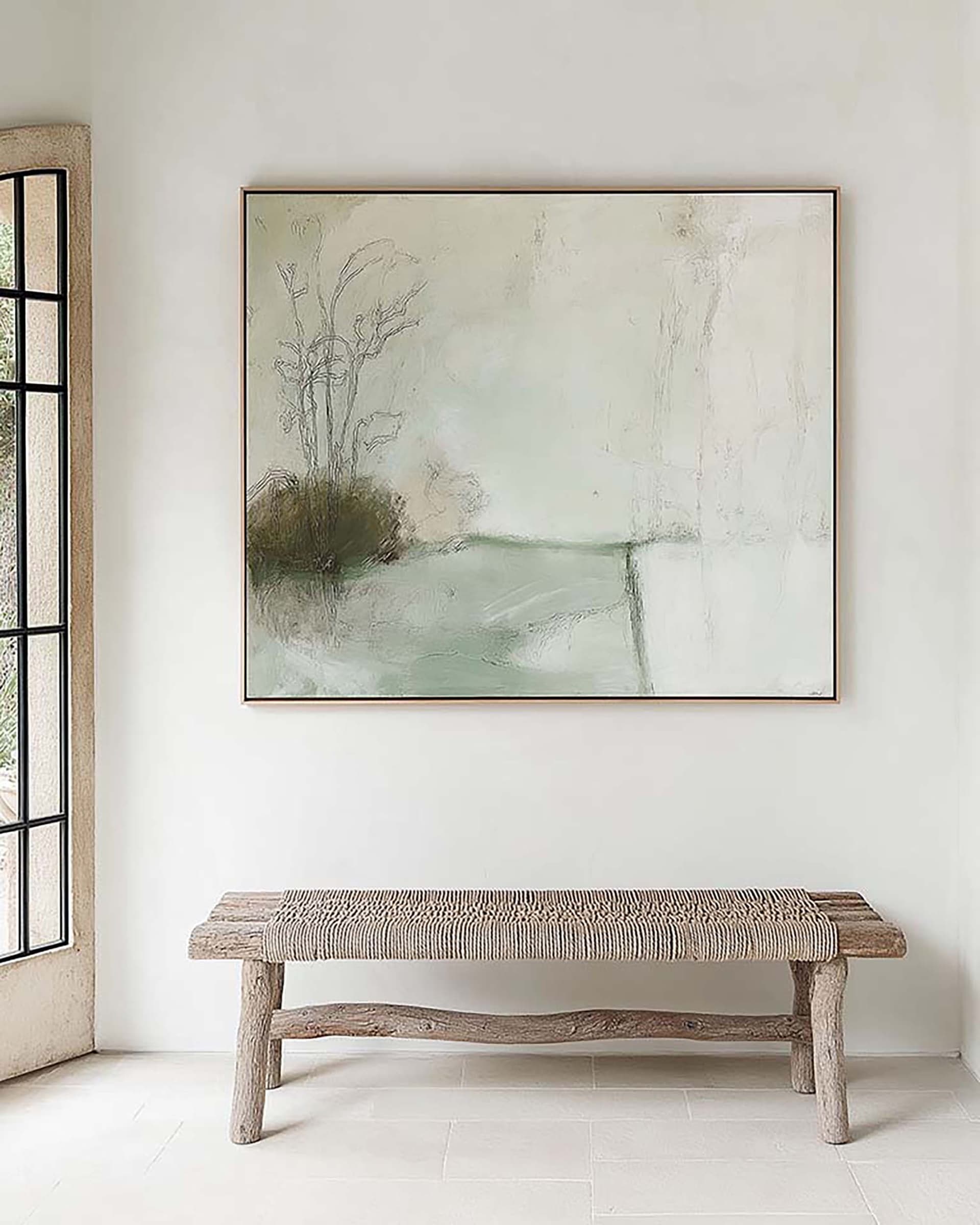
Example scene: Bello's Modern Entryway mockup.
Start with the scene. You can generate a room image in Midjourney, ChatGPT, or Gemini, or use a real interior photo you shot yourself.
The ideal image has a clear stretch of wall, simple perspective, and lighting that is easy to read. Avoid busy shelves, strong patterns, or extreme wall angles unless you specifically want that challenge.
You are looking for a room that already feels like your brand. If the space is too busy, too stylized, or too cramped, the mockup will be harder to clean and harder to sell.
Prompting tip: Ask for a minimal interior with blank wall space, natural light, and room to hang framed art. The less clutter near the intended wall, the less cleanup work you will need later.
Remove Existing Art and Clean the Wall
Open the room image in Photoshop. If the wall already contains artwork, remove it first so you have a clean base to work with.
Your goal is not just deleting the frame. You want the wall texture, tone, and lighting to look uninterrupted where the new art will go.
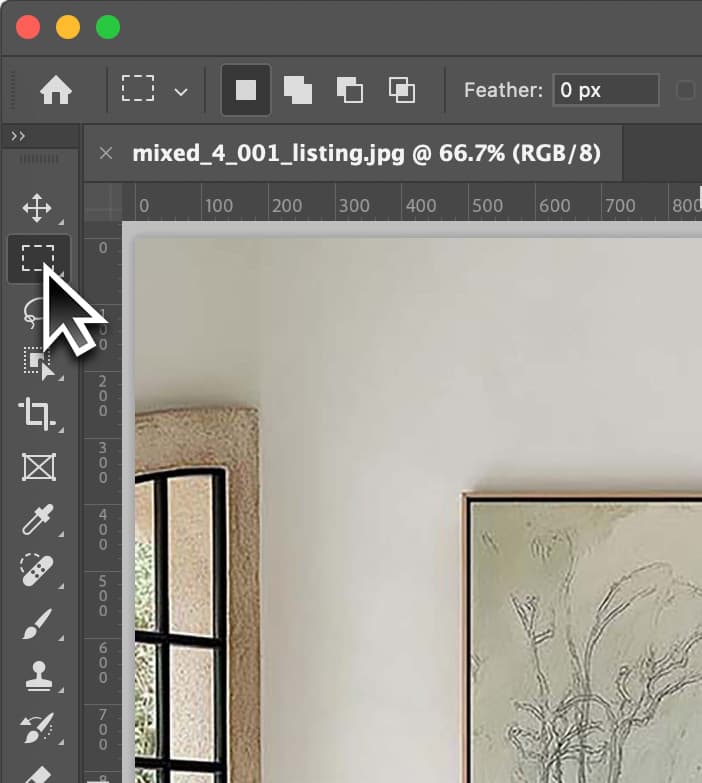
2A. Select the frame with the Marquee tool
Grab the Marquee tool and draw a selection around the existing framed artwork.
Include a little extra space around the frame so you capture the shadow too. We want to remove the entire object and its visual footprint, not just the visible frame edges.
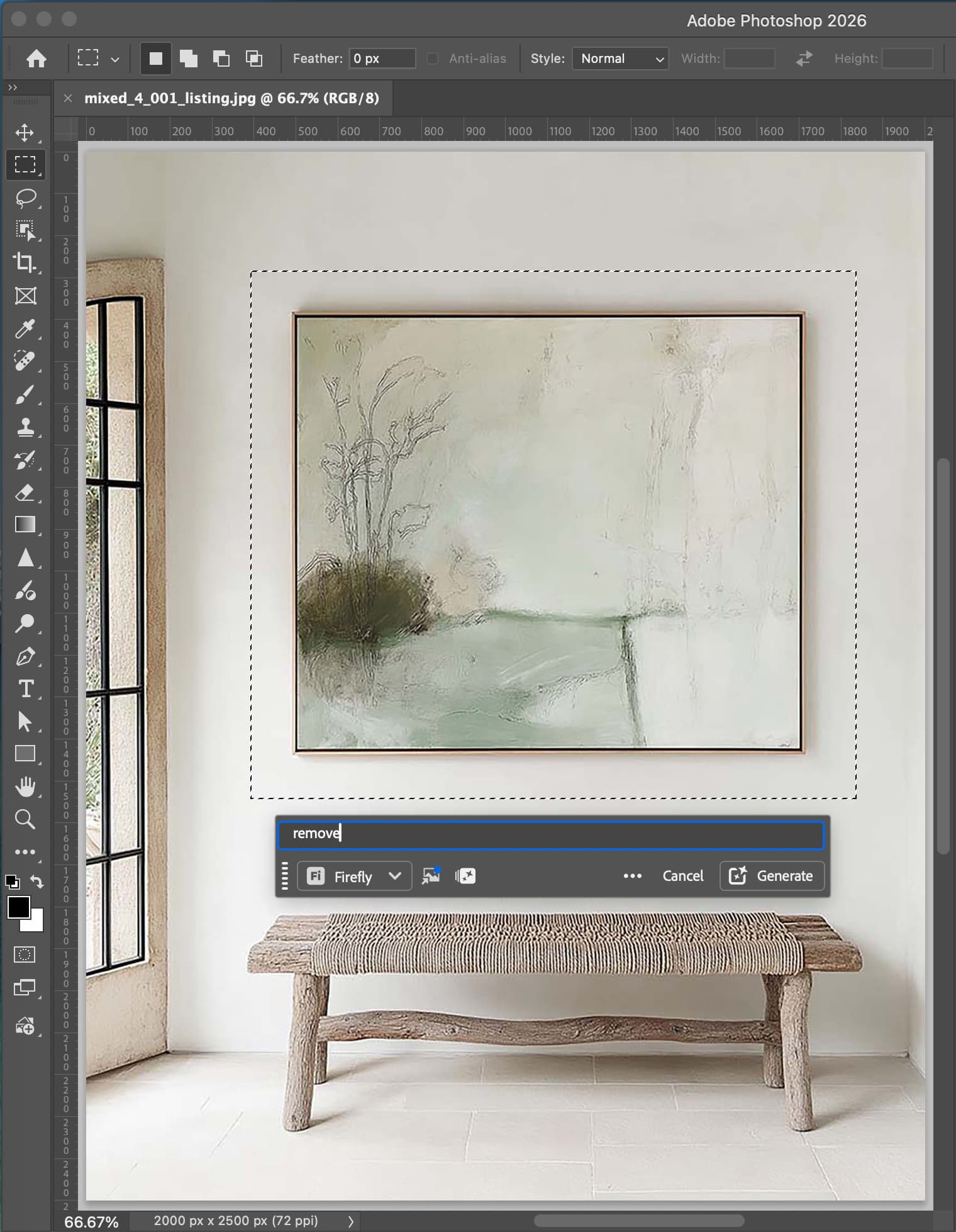
2B. Type “remove” and generate
Once the frame is selected, type remove into the contextual Generative Fill box and click generate.
Photoshop is usually very good at rebuilding a simple wall like this, especially when the surrounding texture and lighting are clean.
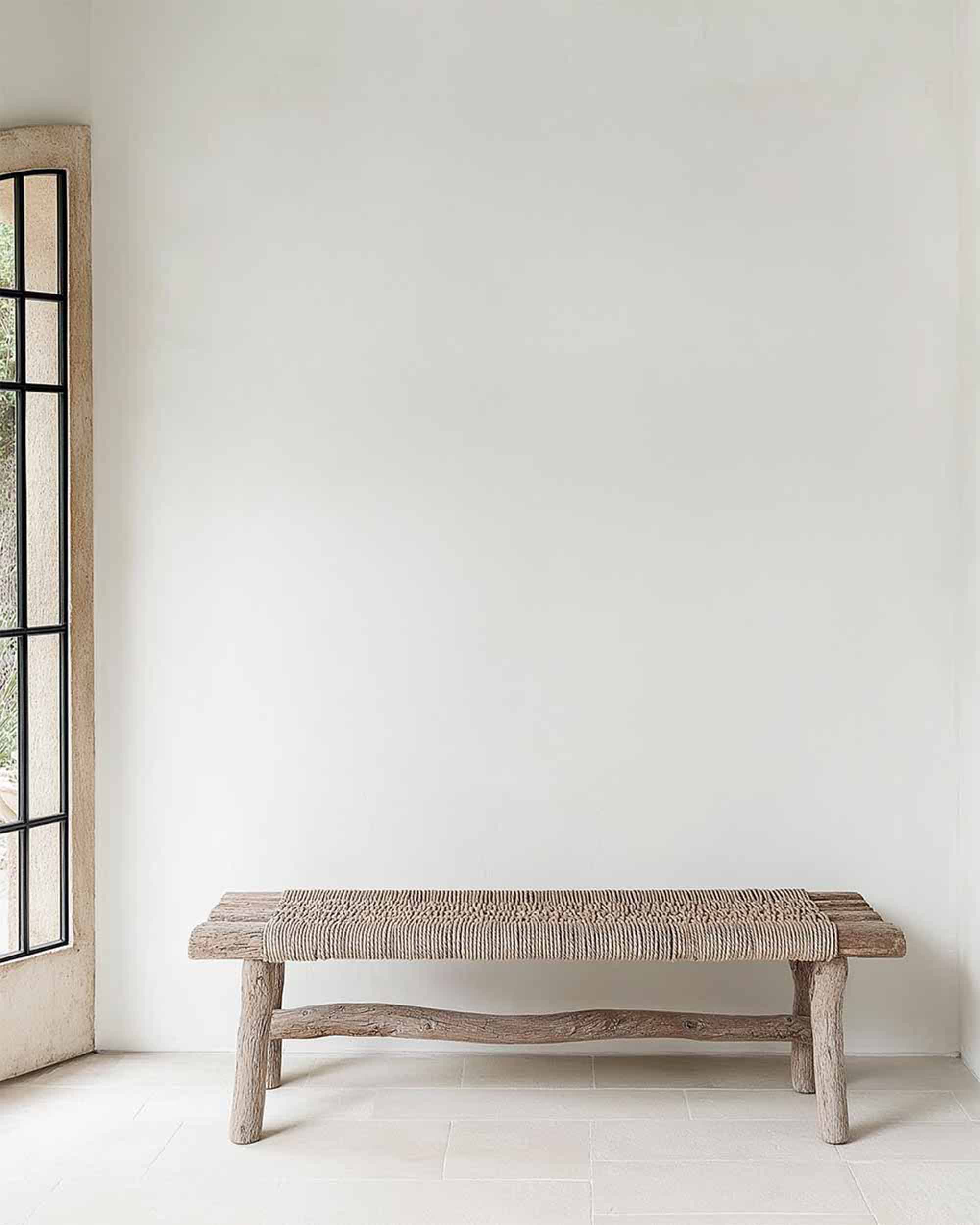
2C. Check the clean wall result
The end result should look like the artwork was never there. Before moving on, zoom in and make sure the wall texture still feels natural and the lighting transition stays believable.
If the patch looks too smooth or slightly warped, run one more cleanup pass before placing your own piece.
What to watch for
- • Keep vertical edges in the wall or molding straight
- • Preserve natural gradients from light and shadow
- • Zoom out often so the patched area does not look too smooth or too blurry
Use the FRAMES Plugin to Add Your Art
Now, for the fun part. We'll install the FRAMES Photoshop plugin to make it easy to frame your art inside the room.
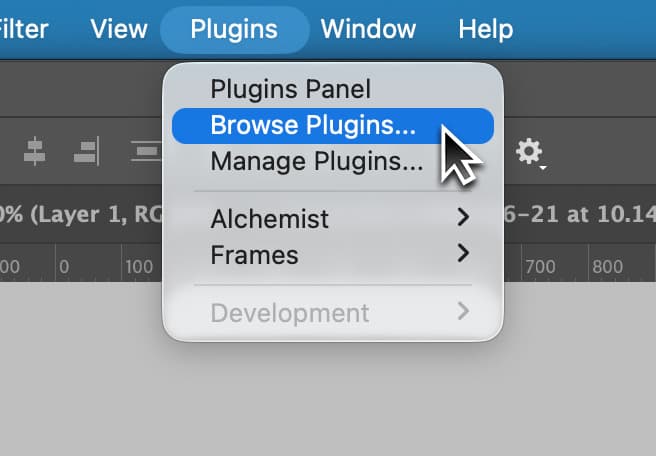
3A. Open the plugin marketplace
In Photoshop, click Plugins > Browse Plugins… to open the marketplace.
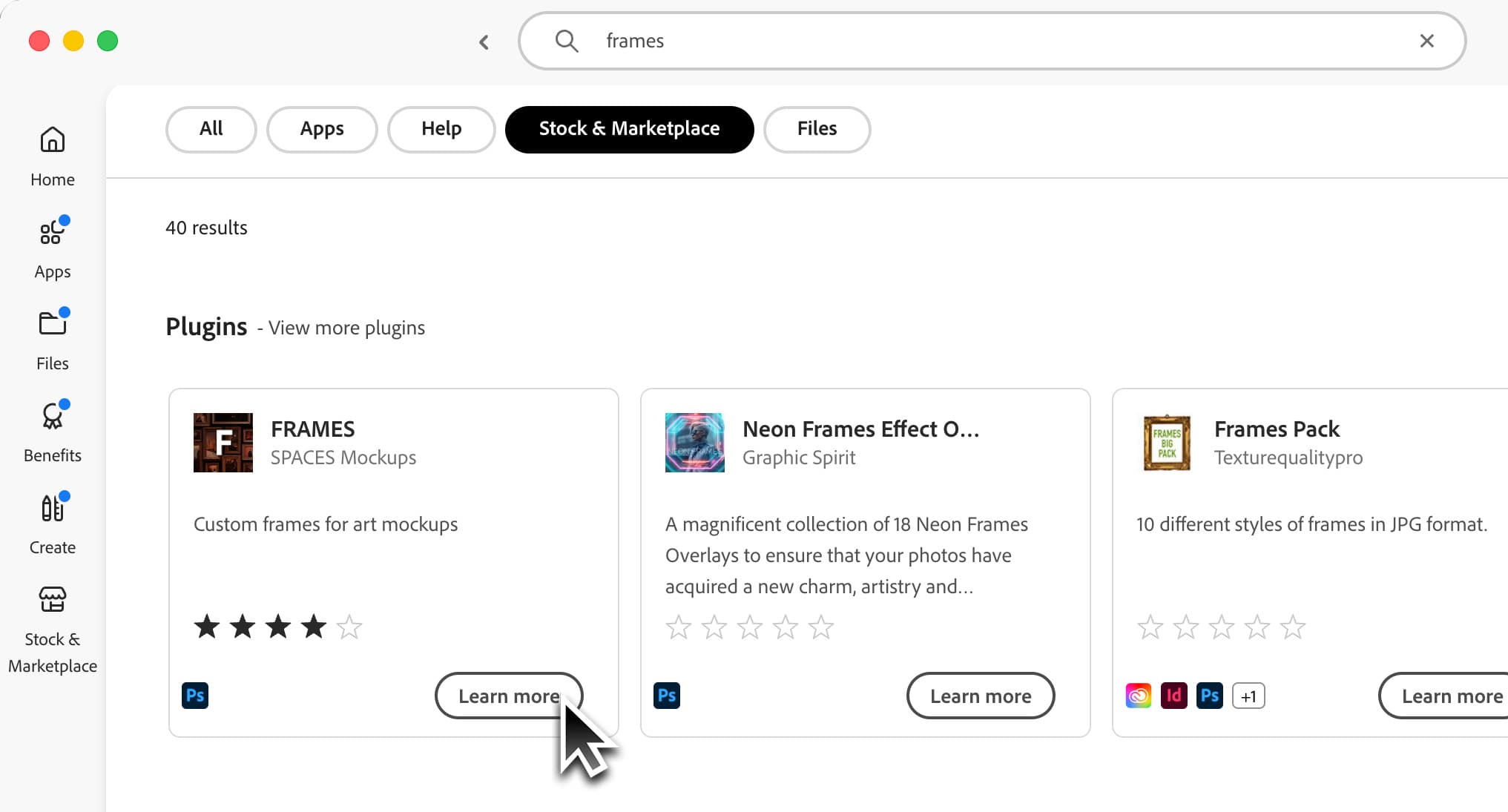
3B. Search for FRAMES and install
Search for "frames", click Learn More, then install the plugin.
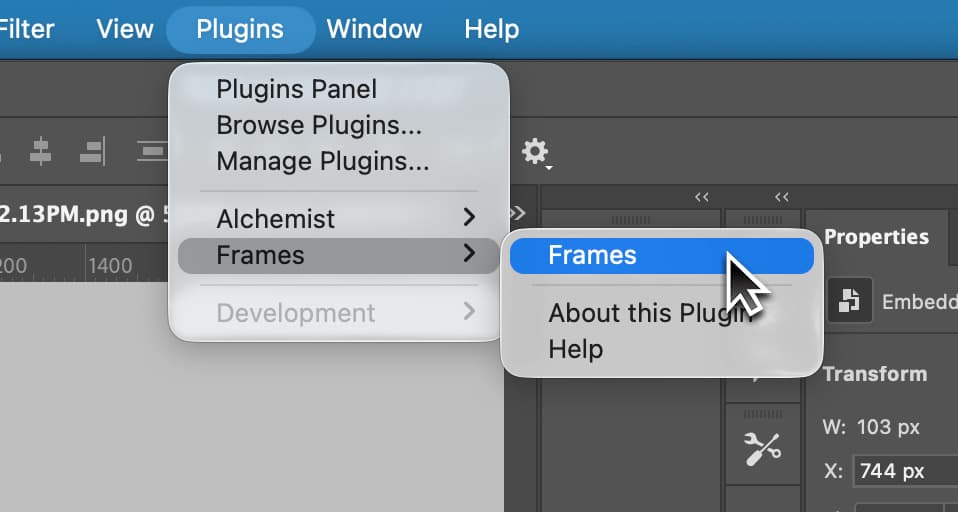
3C. Open FRAMES in Photoshop
Now when you open Photoshop, you should see Frames under Plugins. Click it to open the plugin.
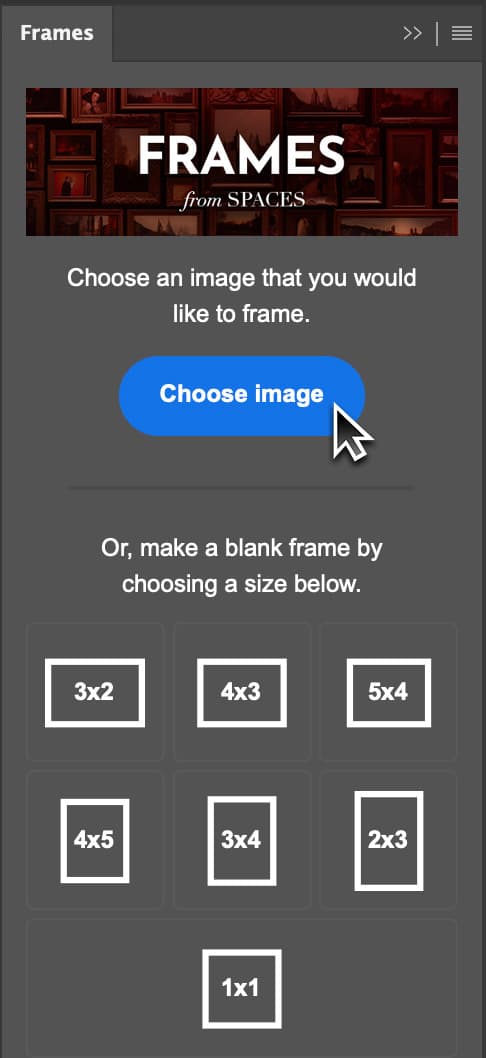
3D. Choose your artwork
Click Choose Art to select artwork from your computer to frame.
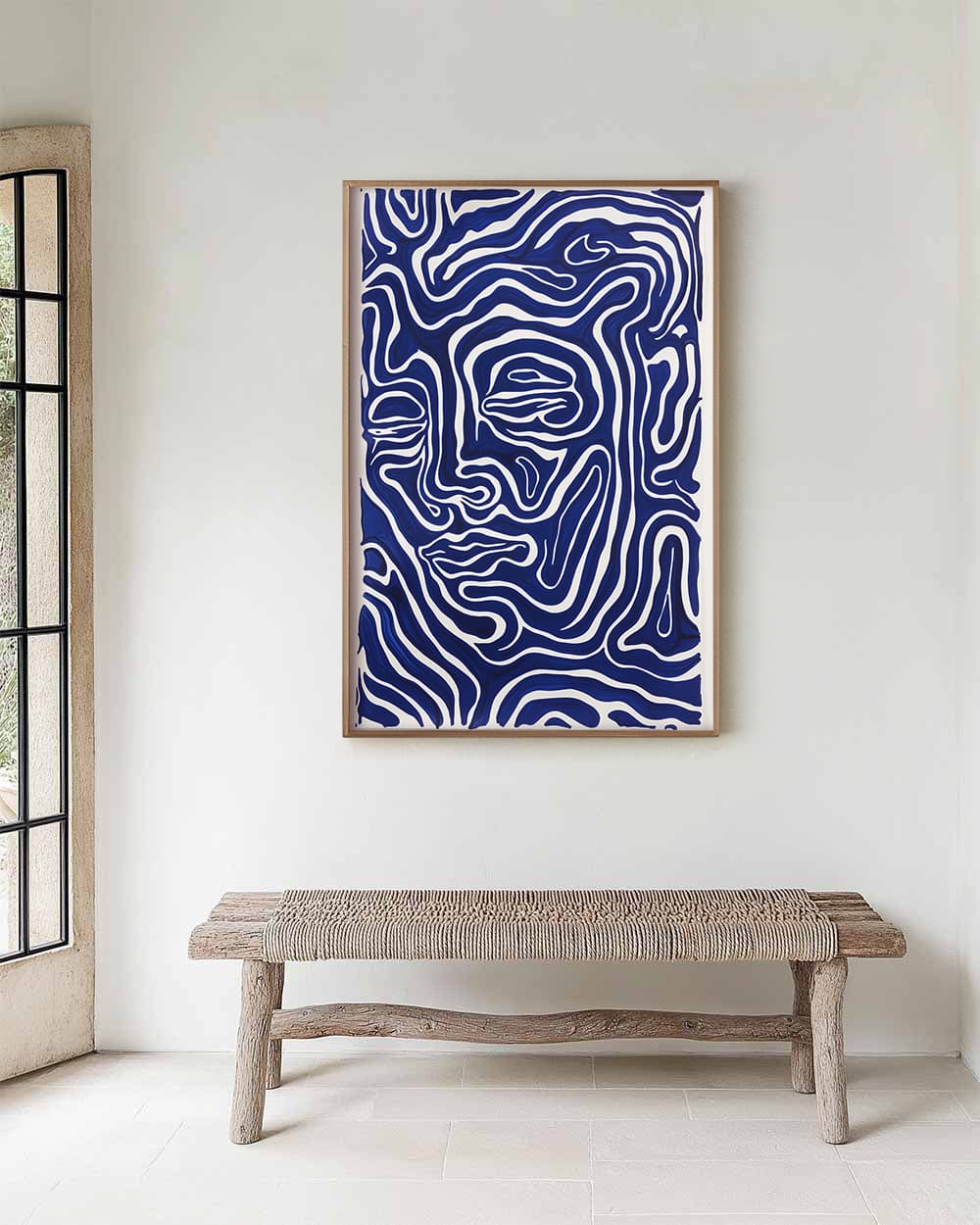
3E. Let FRAMES place it in the room
FRAMES will automatically frame it and place it in the room, with a default shadow. You can add as many artworks as you want.
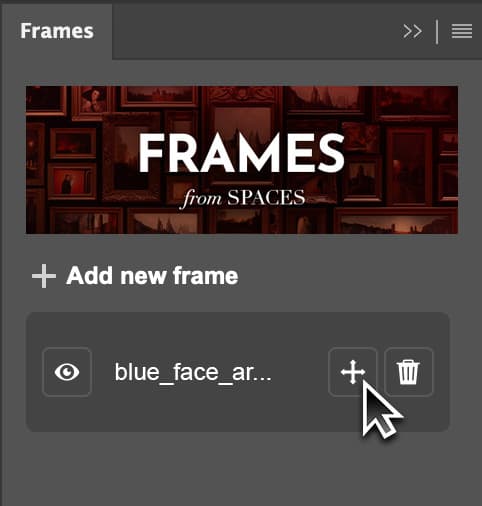
3F. Move or resize the artwork
To move or resize the artwork, click the transform icon next to the frame.
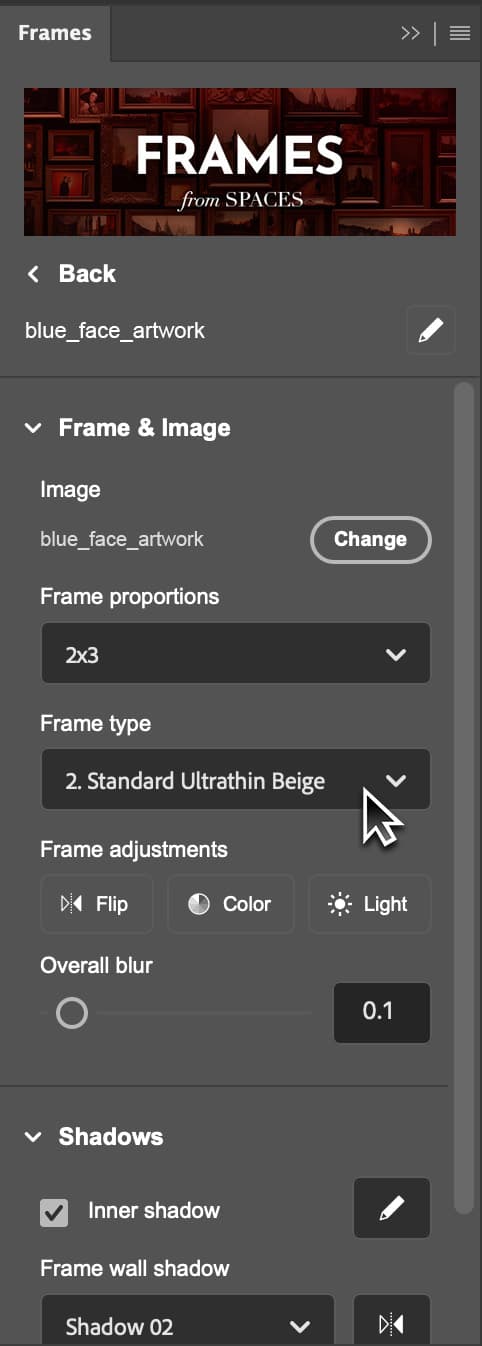
3G. Customize the frame
To customize the frame, click the row to open the edit screen. You can change the frame style, color, or lighting, adjust the frame's inner shadow and wall shadow, or even add a custom matboard.
Why use FRAMES here: instead of building perspective, border thickness, and frame styling from scratch, you get a faster placement workflow and can spend your time judging taste instead of wrestling layers.
Get FRAMESBlend the Art Into the Scene
OptionalFRAMES already adds a realistic shadow for you, so this step is optional. If you want to push the realism further, this is what separates a convincing mockup from one that looks pasted on.
For the shadow, you can refine the default or add your own subtle shadow so the frame sits naturally against the wall. Depending on the scene, that might be a soft drop shadow, a painted shadow on a separate layer, or a very light multiply layer masked around the frame edges. Keep it restrained.
To match the lighting, apply a Curves adjustment layer clipped to the frame and artwork. Use it to adjust their brightness and color so they pick up the same warmth, contrast, and tone as the room, instead of looking like a flat layer dropped on top of the scene.
Good shadow habits
- • Match the room's actual light direction
- • Use low opacity and build up slowly
- • Let the shadow soften as it moves away from the frame
- • Avoid heavy black edges that scream “Photoshop effect”
Export the Final Mockup
When the art feels integrated into the room, export the image for its intended use. A large JPEG usually works well for Etsy, Shopify, and blog images.
If you are making multiple mockups from the same room, save a layered master PSD before exporting so you can swap in new pieces later without rebuilding the scene.
Why This Workflow Is Better Than Basic PSD Mockups
A standard PSD mockup is fast, but it keeps you inside someone else's composition. Creating the scene yourself gives you more originality, more brand control, and more freedom to match your artwork with the right interior style.
PSD Mockup Workflow
- Locked into a pre-made scene
- Fast to swap artwork
- Limited originality
- Less control over composition
Custom Photoshop Workflow
- Starts with your own room image
- Lets you clean and compose the scene
- Feels more original and branded
- Gives you finer control over placement, framing, and mood
When to Use This Method
- You want mockups that do not look like stock templates
- You want the room style to match your brand or collection
- You are comfortable doing some cleanup work in Photoshop
- You want a repeatable workflow for building your own scene library
Need the Simpler PSD Workflow Instead?
If you already have a PSD art mockup file and just want to swap your artwork into it, start here instead: How to Use a PSD Art Mockup File in Photoshop.